
Applied filters can be saved as filter presets. This allows you to quickly apply different sets of filters.
Save a Filter Preset
To save a filter preset, follow the steps outline below:
-
Open the Filters Panel
-
Select and Apply your filters
-
Click
-
Give the filter a name
-
Click Save
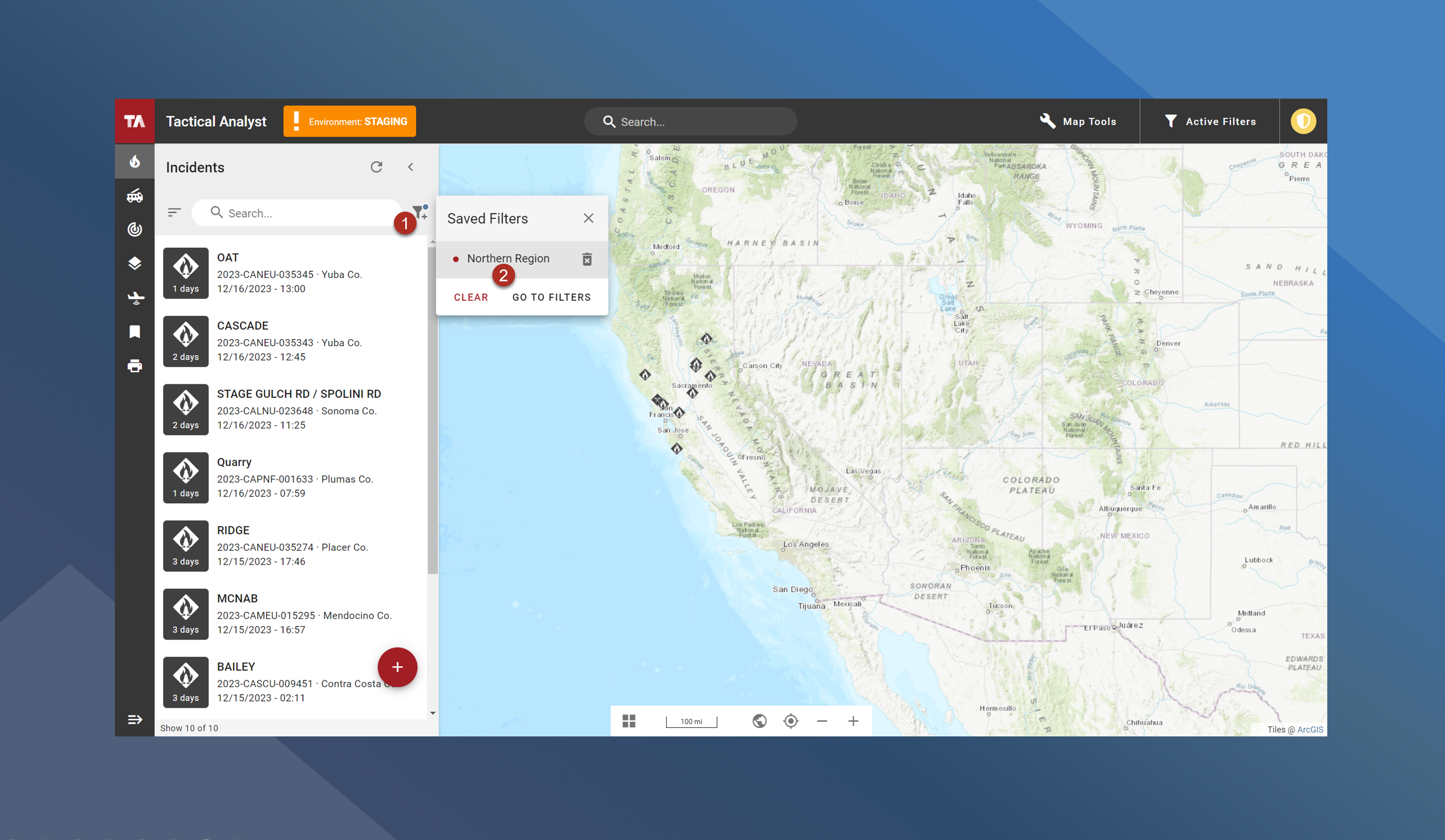
Select a Filter Preset
To select a filter preset, follow the steps outline below:
To select a new saved filter, follow the steps outlined below:
-
At the top of the incident list, click the
-
Select the desired filter
The saved filter will be applied to the map canvas and the incident list.
Delete a Filter Preset
To delete a filter preset, follow the steps outline below:
-
Open the Filters Panel
-
Click
-
Click
-
Click Delete to confirm.