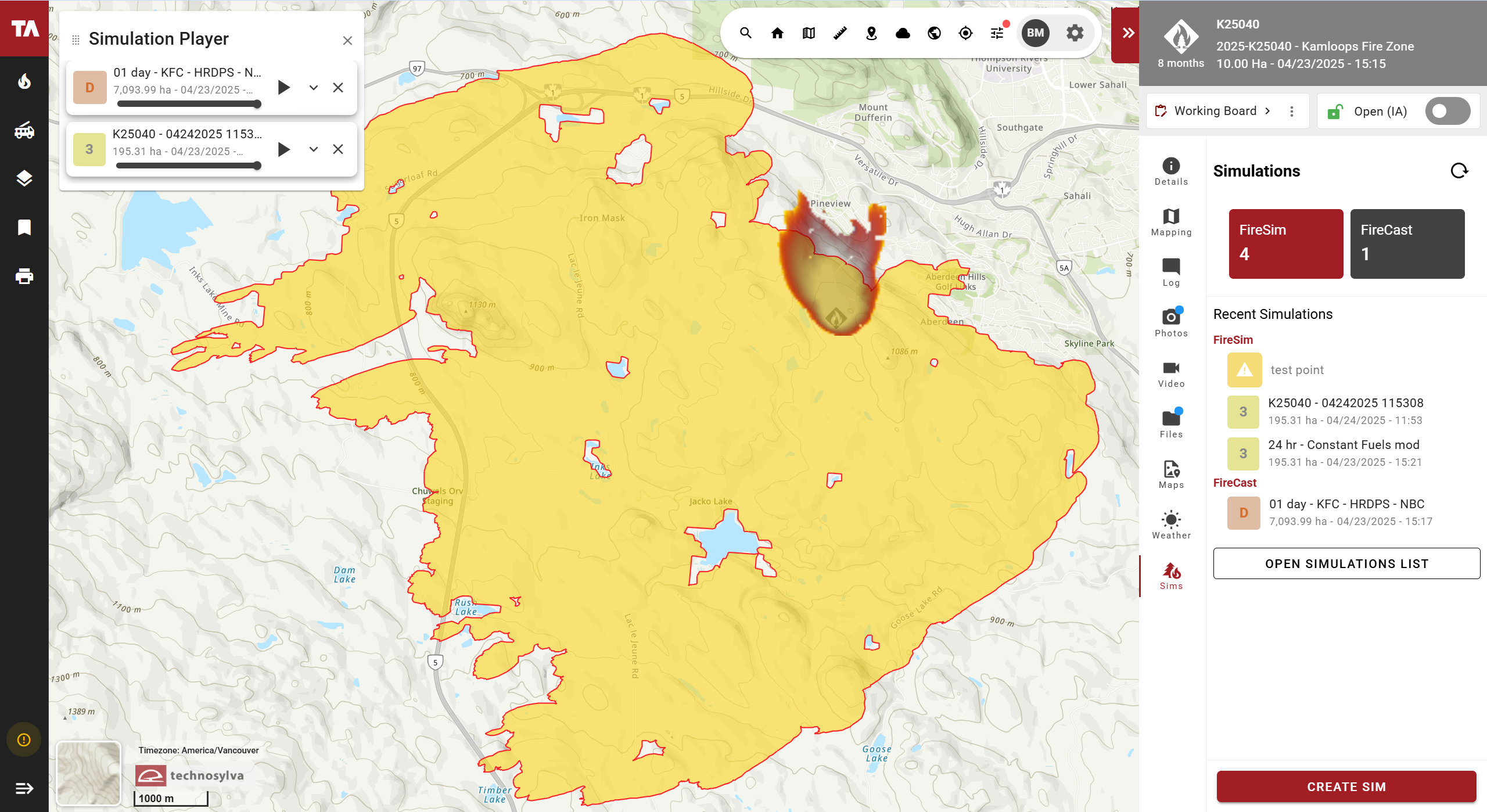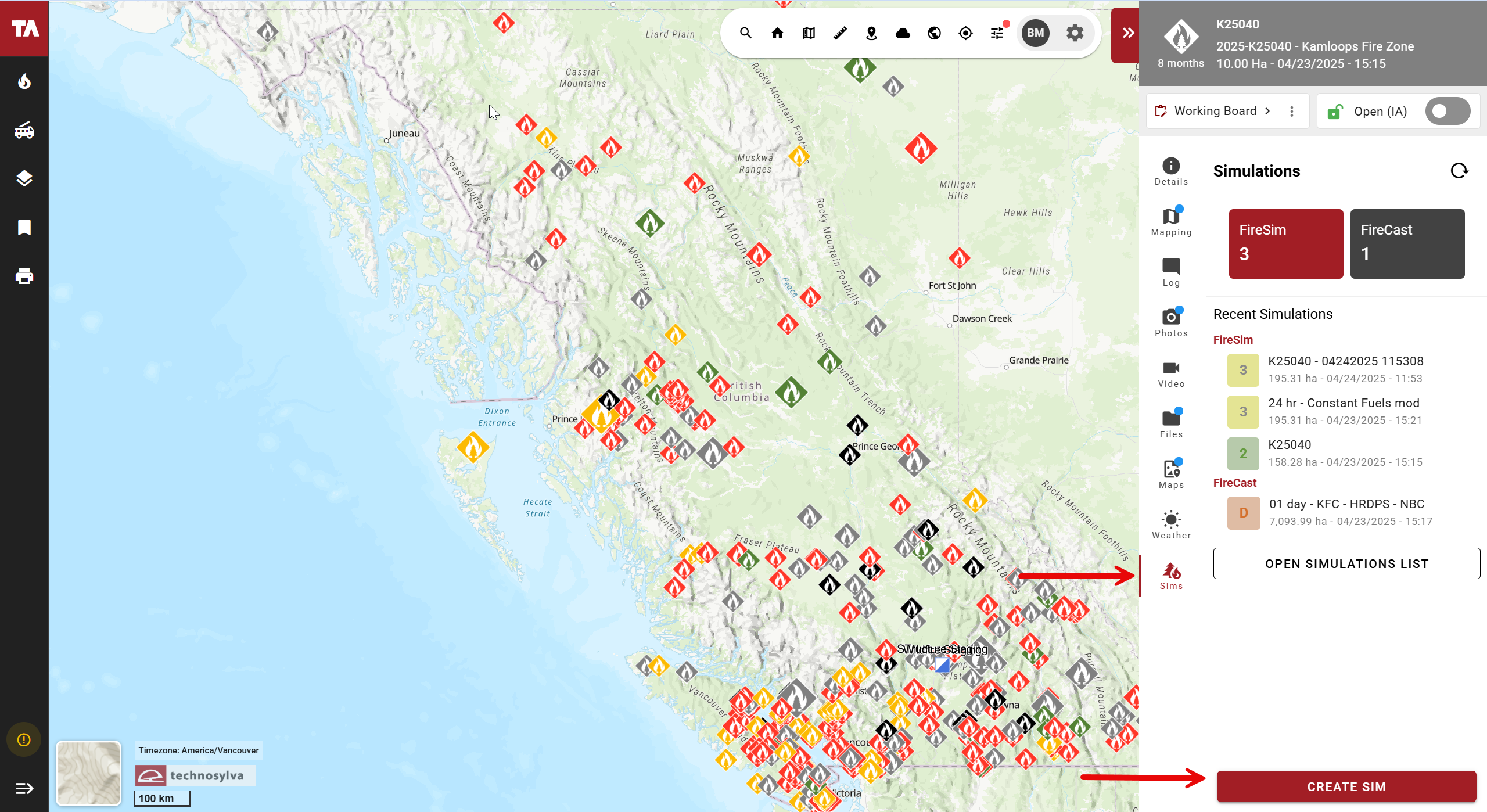
The Sim Tab provides a high-level overview of your most recent activity, allowing you to quickly monitor or access ongoing work without leaving your current view.
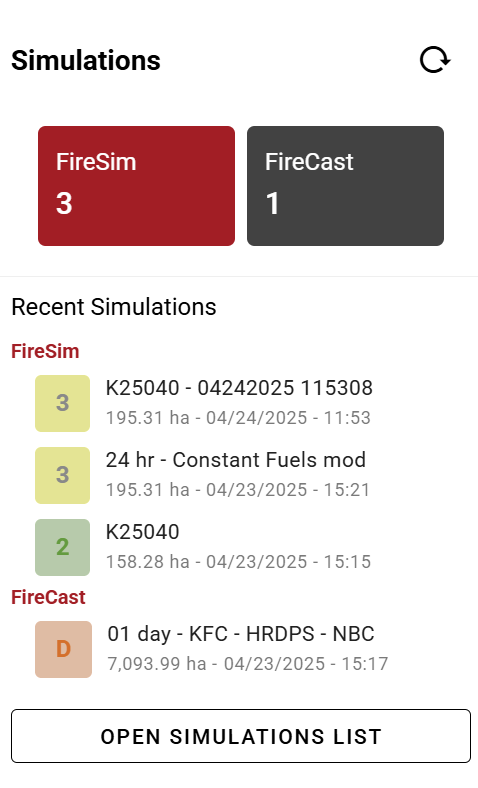
While the Sim Tab shows your most recent runs, you can access your entire history at any time by clicking 
This will open the Full Simulation List in a new tab, allowing you to manage, filter, and review your complete library of simulations while keeping your original dashboard active.
FireCast and FireSim are only available in Tactical Analyst Web for select customers.
Spread Model: FIRESIM and FIRECAST
Open the Sims tab, and click 
Spread Model: FIRESIM
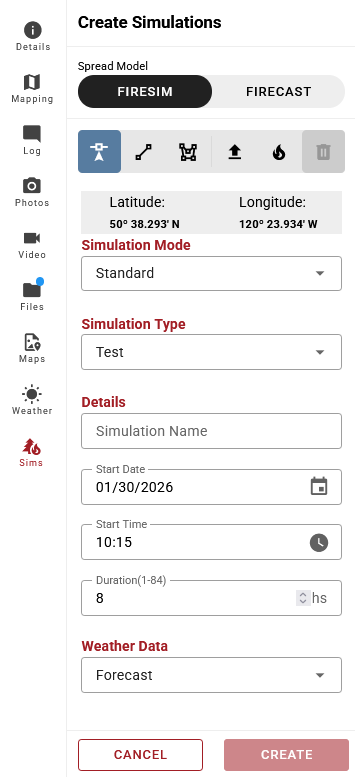

Simulation input options
Create Point Ignition: Draw a point on the map canvas.
Create Line Ignition: Draw a line on the map, double-click to complete.
Create Polygon Ignition: Draw a polygon on the map canvas.
Upload a KML, KMZ, GeoJSON, SHP File: Import a perimeter from an existing file.
Incident: Associate with the selected incident.
Simulation Parameters
https://helpcenter.technosylva.com/wfa-desktop/running-a-simulation
Simulation mode: For more information on simulation mode options, click here.
Set remaining simulation details, including the sim name, start date and time, and duration.
Weather Data: For more information on weather data, click here.
Spread Model: FIRECAST
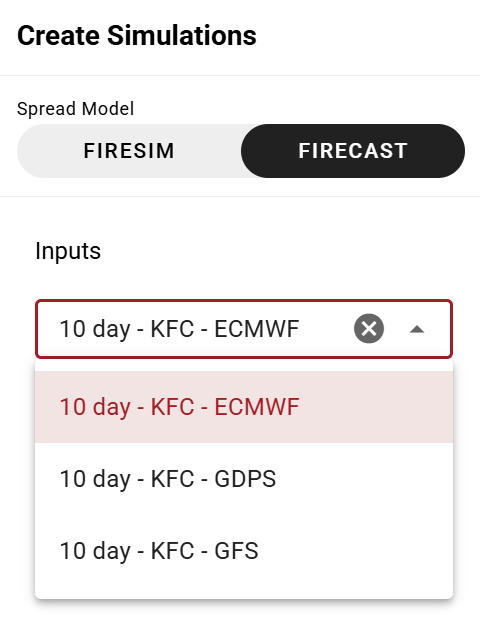
FireCast is configured by your organization’s administrator.
Viewing Sims
FireSim
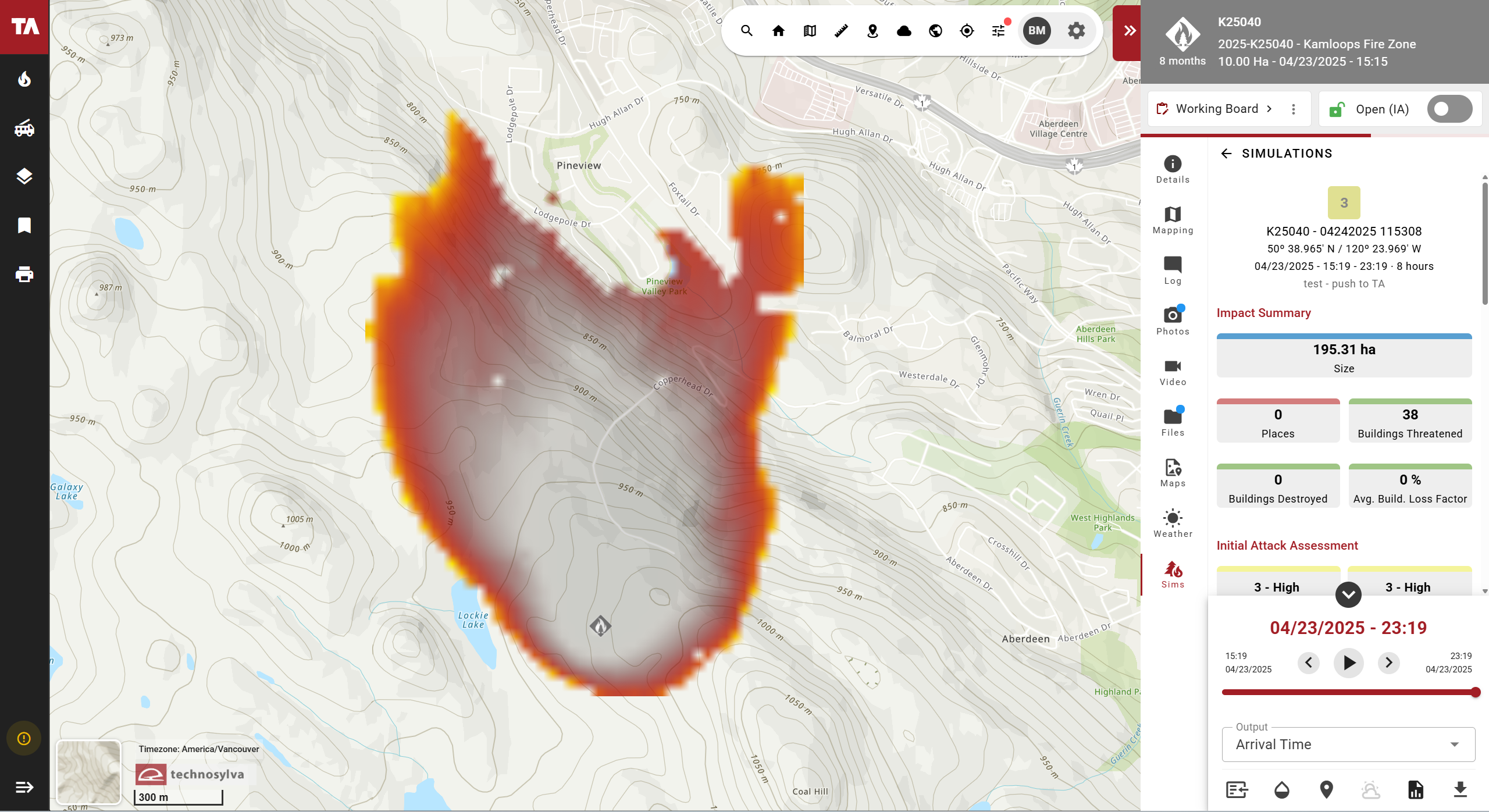
FireCast
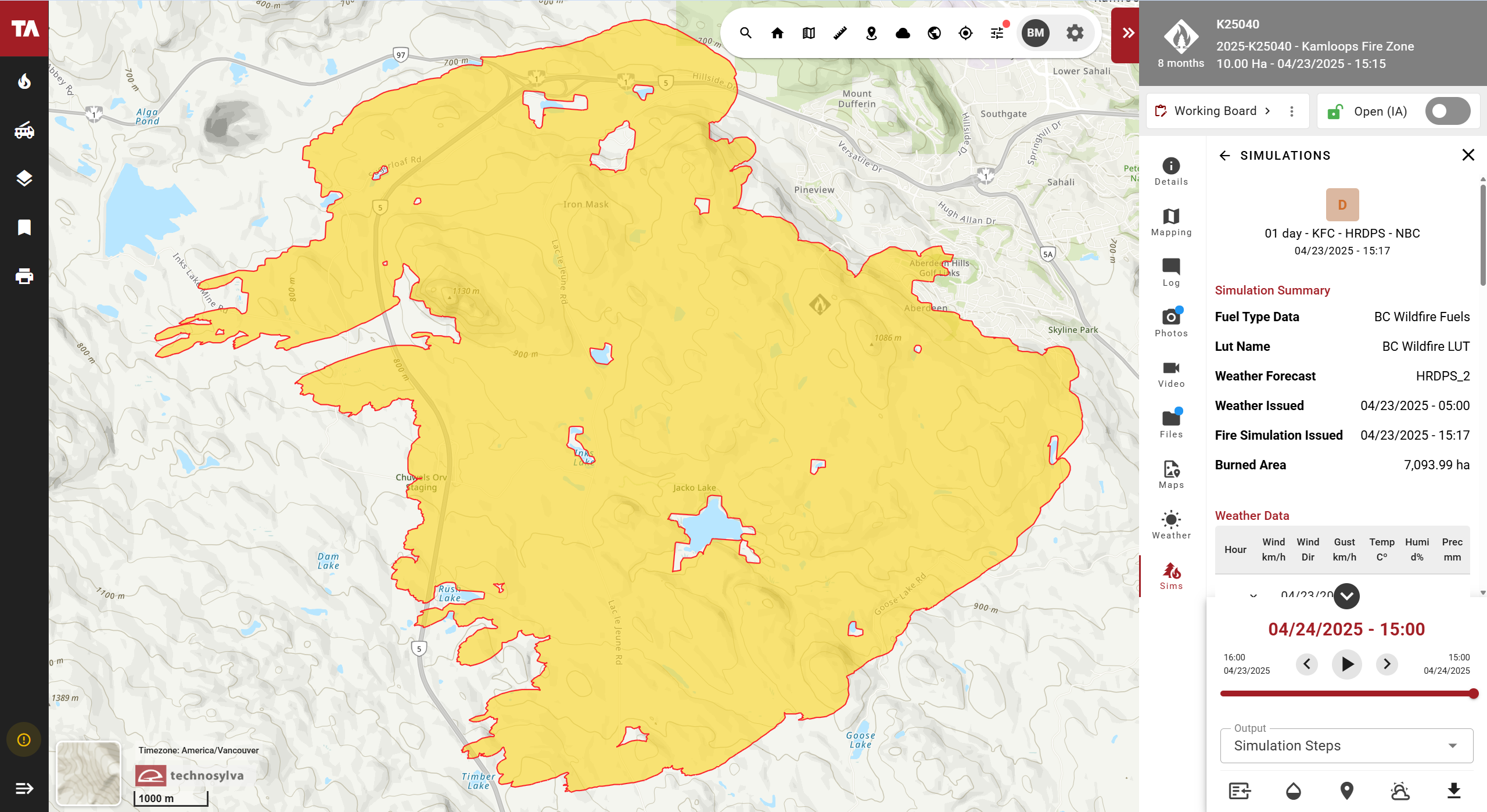
FireSim and FireCast generate different result outputs.
Visualization options vary by engine to reflect the unique data outputs of FireSim and FireCast. For a direct comparison in one visualization, use the