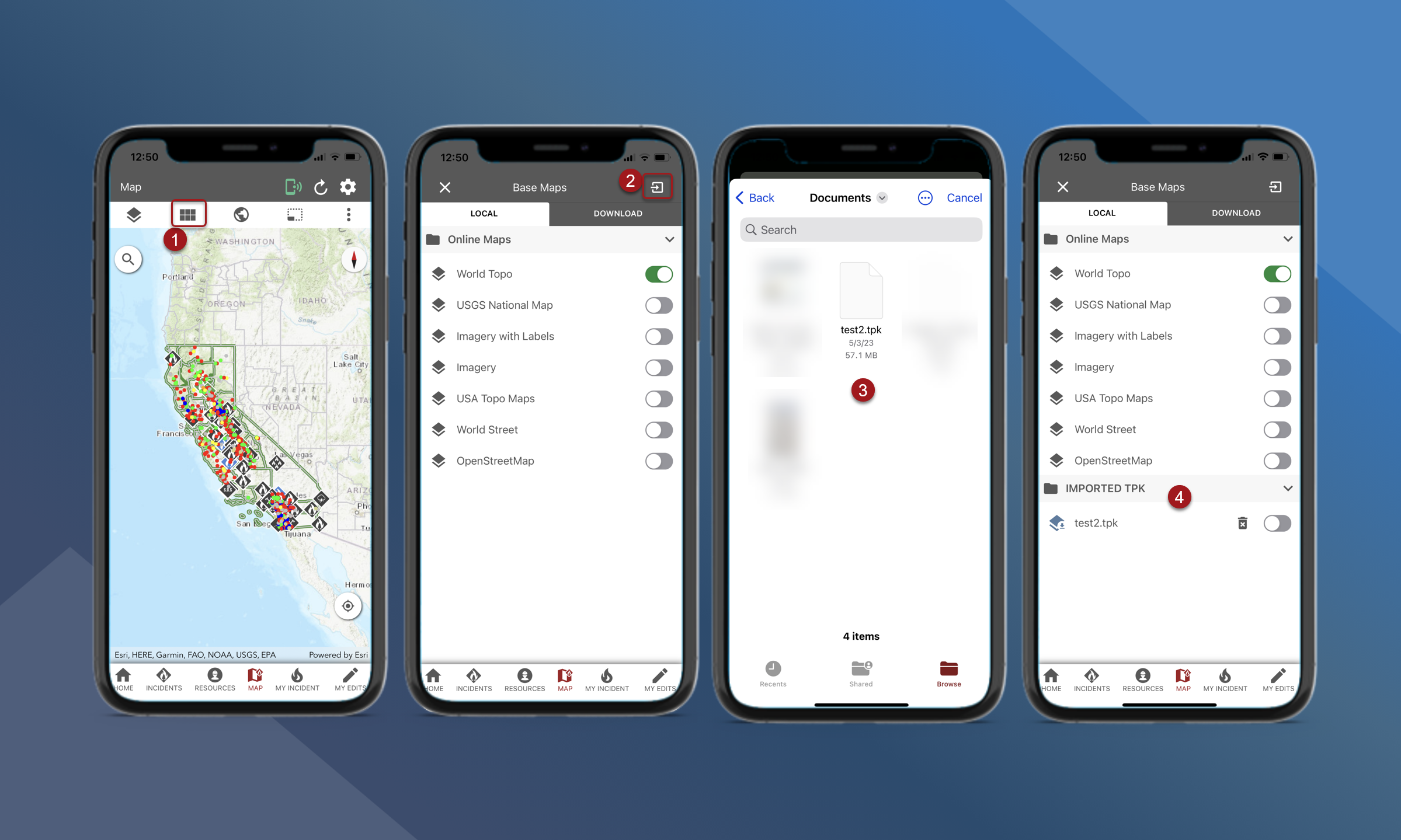
To import TPK/VTPK files, follow the steps outlined below:
-
On the map screen, open the Basemaps panel
-
Tap the
import button in the upper right corner
-
Tap on the file you want to import
-
The file will begin importing and will appear in the Local tab under the Imported TPK section.
In TA mobile version 2.10.3.4, there is a known issue with the import button on the Map Layers panel. Please use the import button on the Basemaps panel.
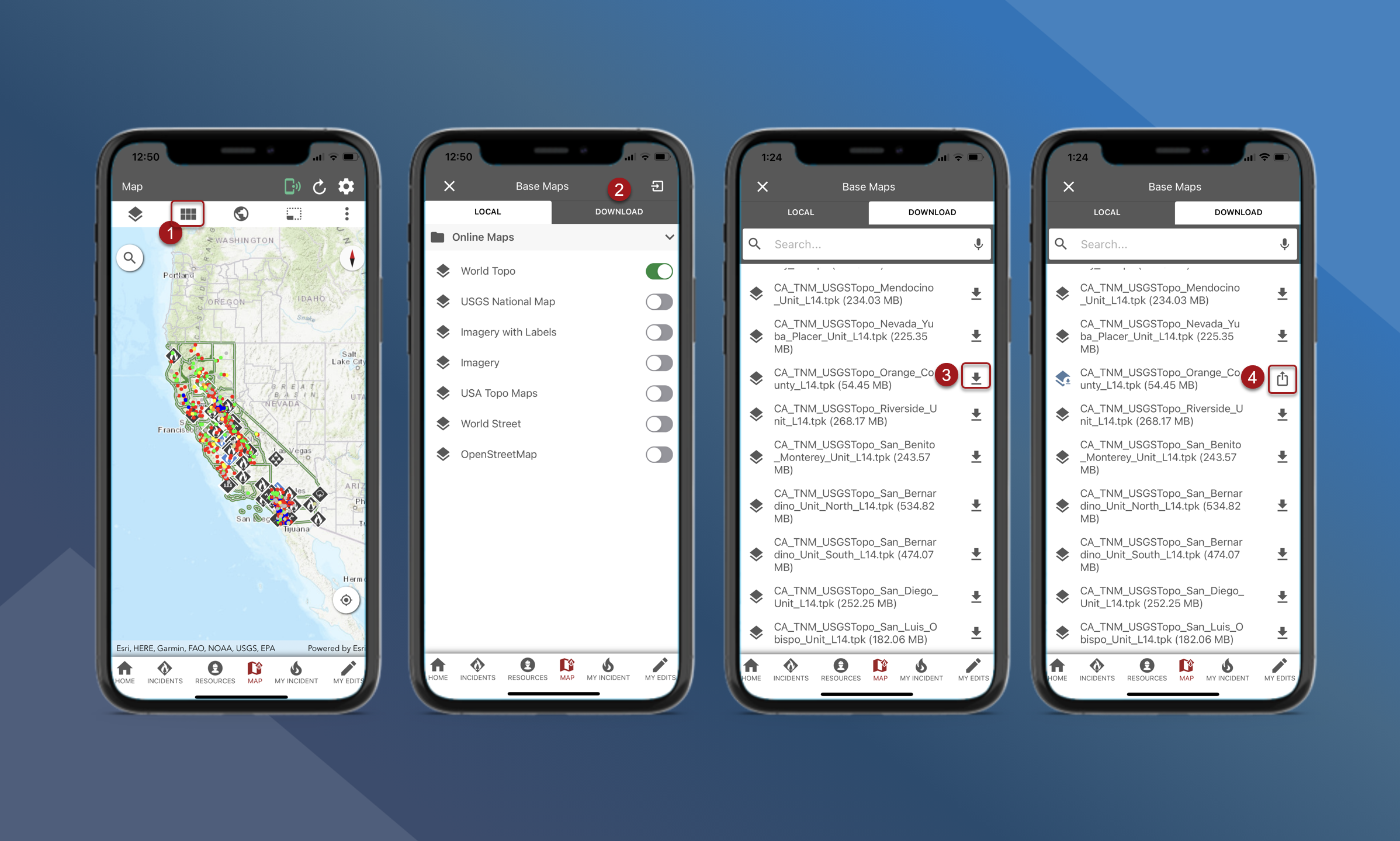
To export TPK/VTPK files, follow the steps outlined below:
Users will need to download the TPK before exporting/saving.
-
On the map screen, open the basemaps panel
-
Tap the Download tab
-
Tap the download button next to the TPK you want to export
-
Once the file downloads, the share icon will appear
-
-
Tap the share icon to open the menu to send by airdrop or save the file to a specified location
Some Android devices may require users to download a File Manager App from the Google Play Store before they are able to save a tpk file to their device.