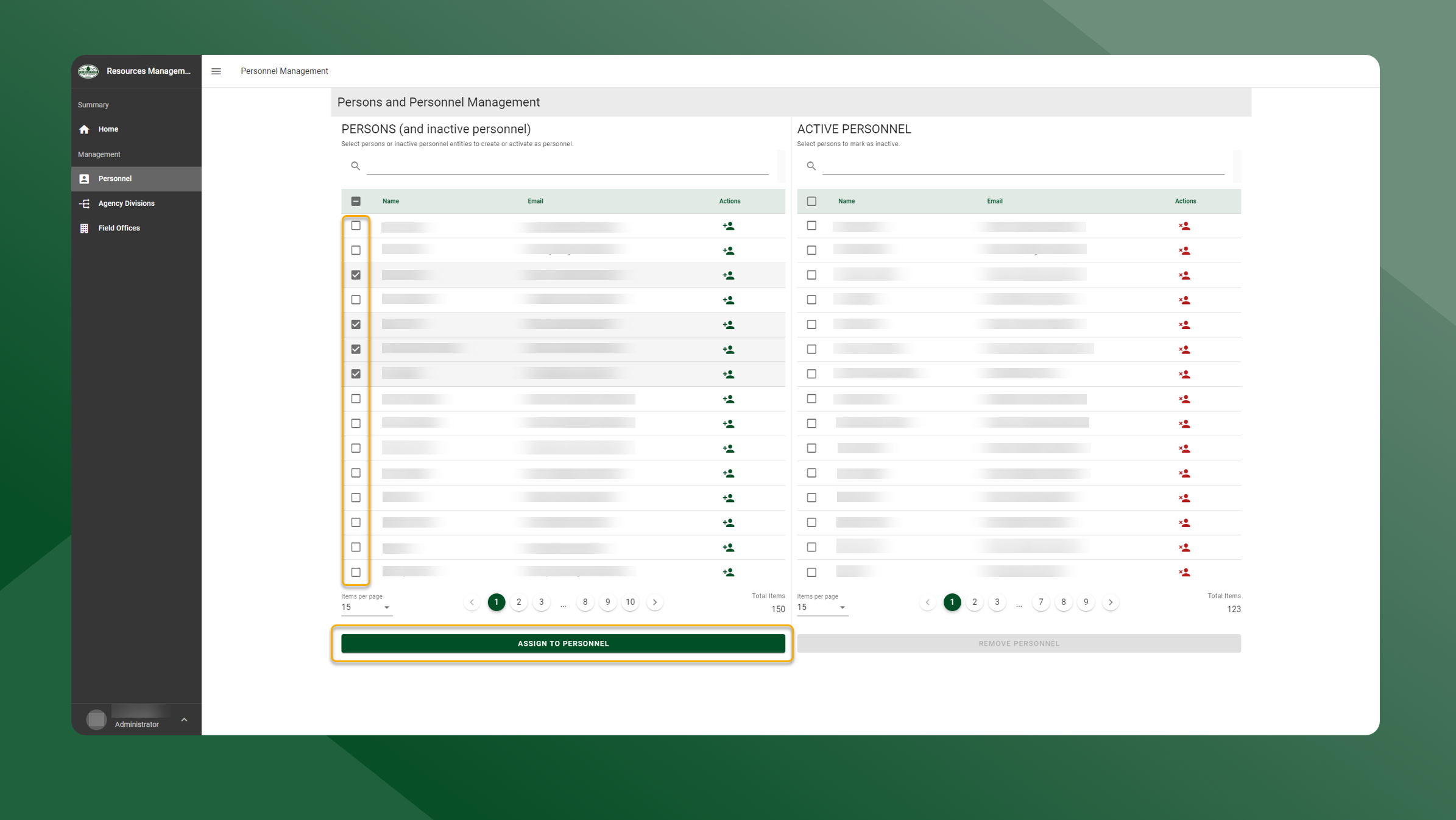
To add active personnel, follow the steps outlined below:
-
Open the Resources Manager application
-
Select Personnel from the left sidebar navigation.
-
The table on the left side of the screen are active and inactive personnel.
-
The table on the right side of the screen are active personnel.
-
-
To activate one person, use the left table and select the
icon in the Actions column.
-
To activate multiple persons, toggle the checkbox next to the users name in the left table. Then select Assign To Personnel.
-
-
The person(s) will be added to the table on that right indicating they are active.