
The additional map tools feature is located in the upper right-hand corner of the map.
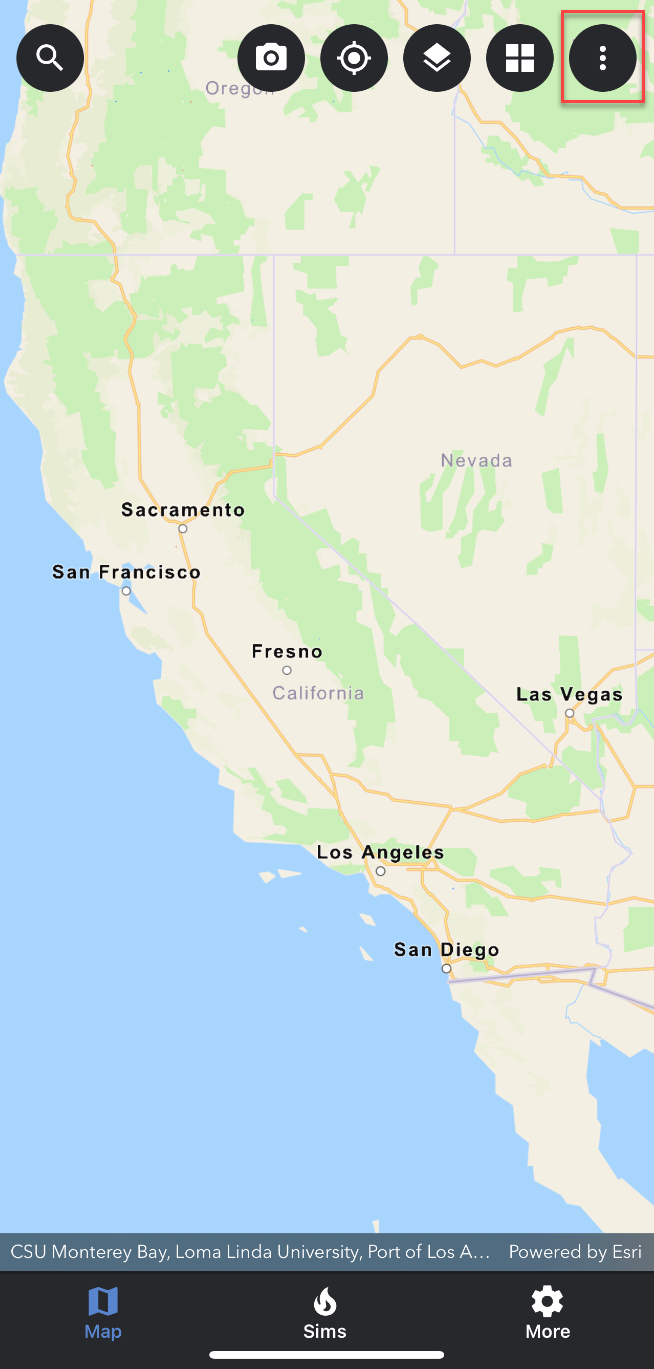
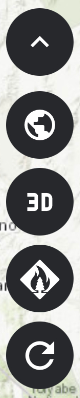
Tap the three dots to view the additional tools.
-
Use the first tool (globe) to get back to the map’s full extent. This is especially helpful when zoomed in on the map - the tool allows you to quickly zoom back out to the map’s extent.
-
Use the second tool (3D) to view the map in 3D mode. Tip: use two fingers on the map to control the 3D tilt. 3D mode looks best when using the imagery basemap.
-
Use the third tool (simulation list) to view the simulations by list.
-
Use the fourth tool (refresh Icon) to refresh the map. The app will notify you when the map is refreshed - full sync finished.