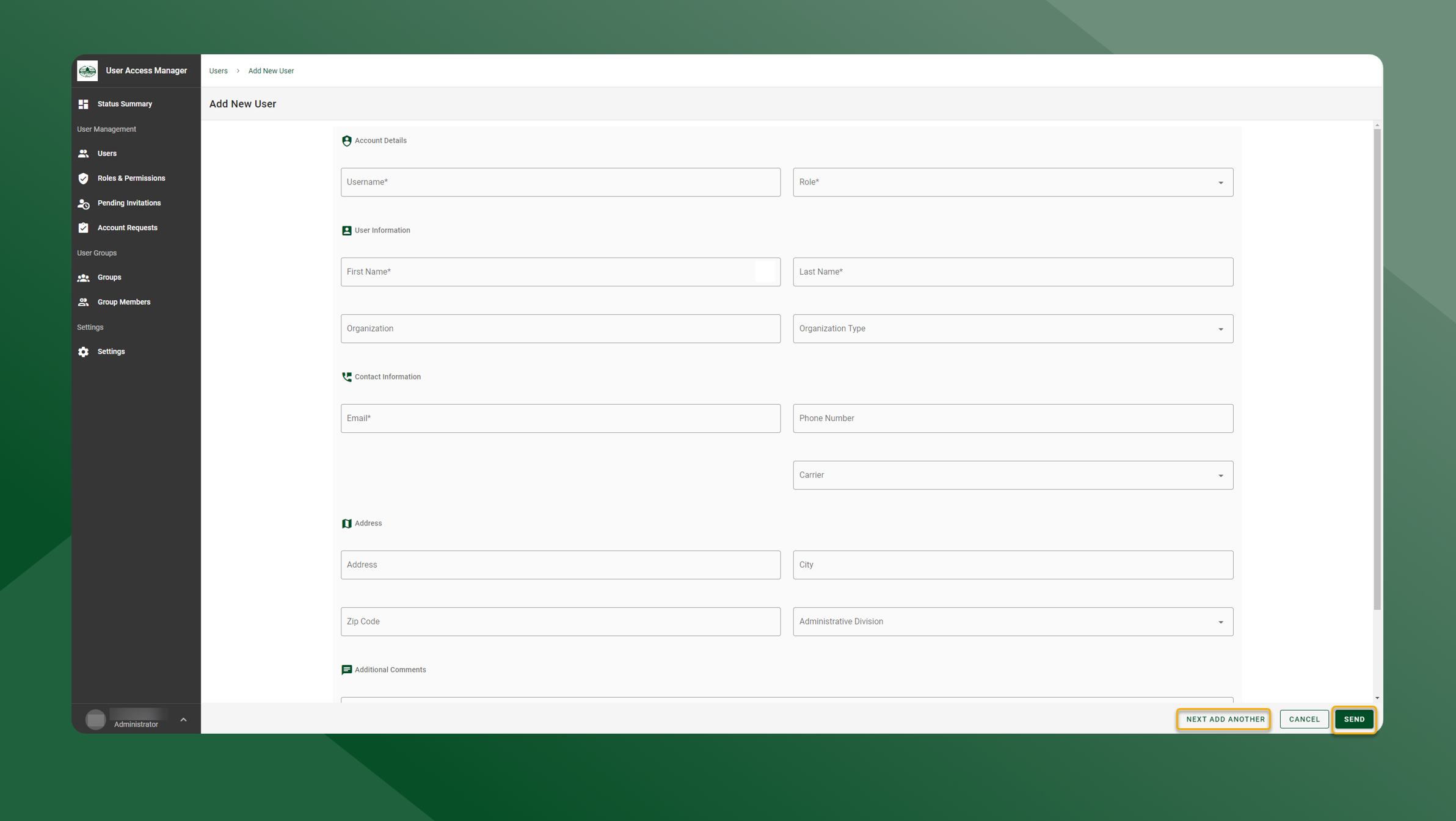
If you need to add more than one user to the system, but do not want to upload a CSV file, you can manually add multiple users and send out the invites all at once.
To manually add multiple users, follow the steps outlined below:
-
Open the User Manager application.
-
Open the User List by selecting Users in the left sidebar navigation.
-
Select New User in the upper right corner.
-
Enter the information for the new user in the Add New User panel.
-
Click Next Add Another
-
This will add the user to the grid but will not send the invite.
-
-
Continue to add users by filling out their information and clicking Next Add Another
-
Once you have added all of the users to the grid click Send
-
The users will receive an email prompting them to login and set up their password.
-