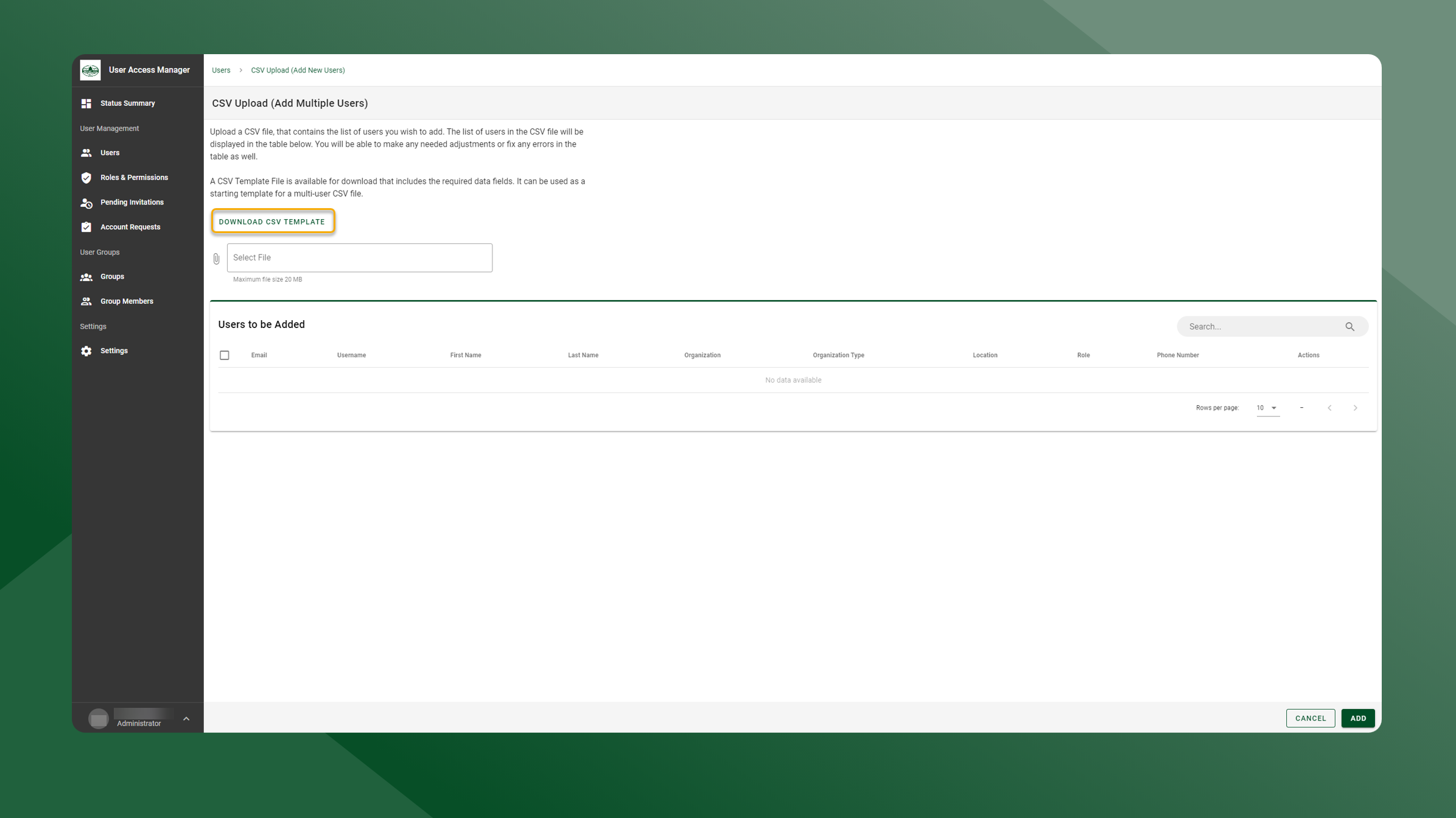
If you need to add multiple users, you can do this by creating and uploading a CSV file that contains all of the new users.
To add new users by uploading a CSV file, follow these steps:
-
Open the User Manager application.
-
Open the User List by selecting Users in the left sidebar navigation.
-
Select Upload in the upper right corner.
-
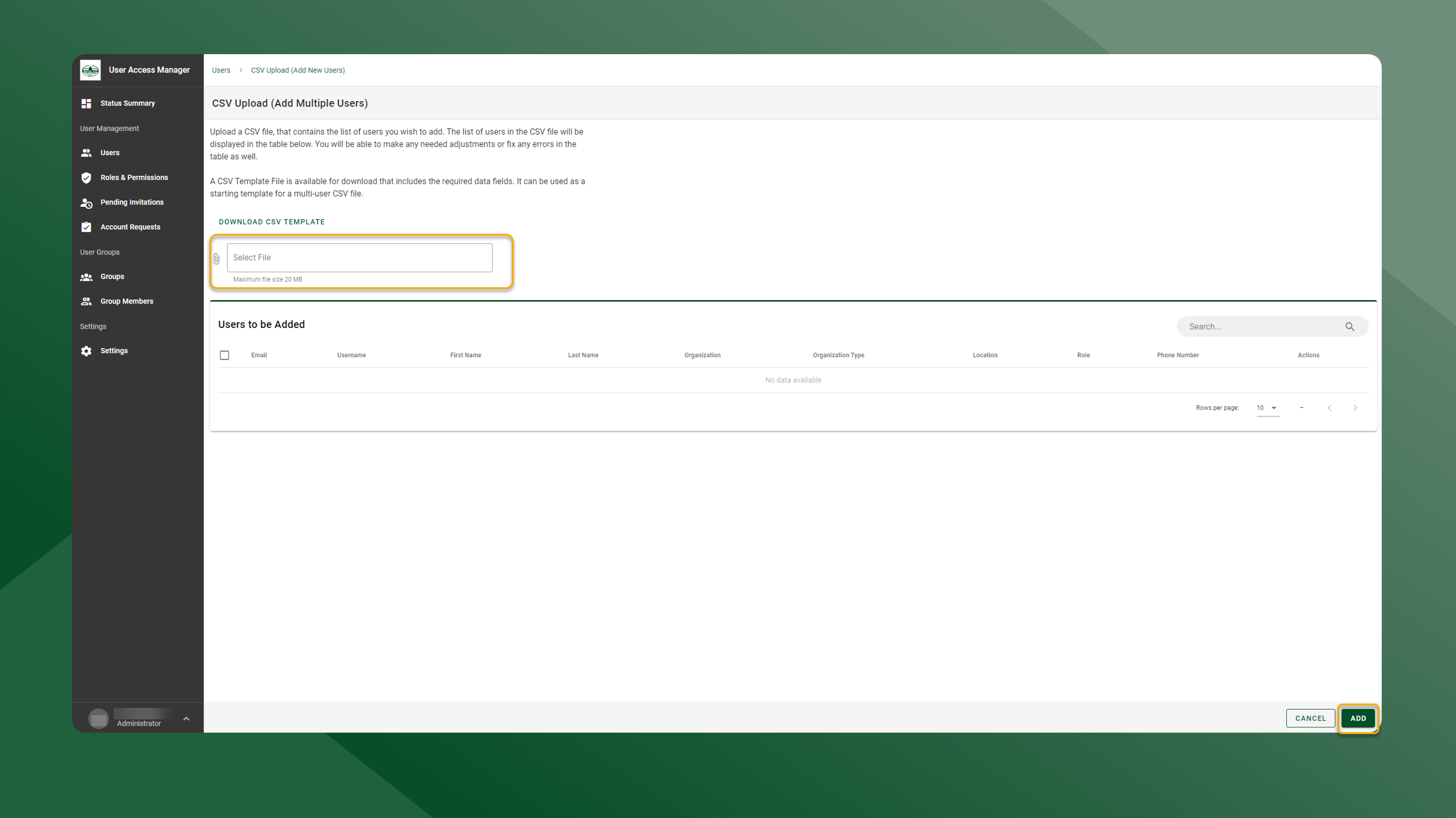
Click Select File
-
Navigate to and select the CSV file you would like to upload.
-
The users from the CSV file will be added to the grid.
-
-
Click the checkbox in the header of the table to select all users or select the checkbox next to a user to only select certain users or to deselect certain users.
-
Only the users visible in the table will be selected, to select all users in the grid, change the “Rows per page” dropdown to “All”.
-
-
Click Add
-
The user(s) will receive an email prompting them to login and set up their password.
-
CSV Sample File
A sample CSV is provided to use as a template. The CSV file contains the required fields that must be included for each user.
These required fields include:
-
Email
-
First Name
-
Last Name
-
Role
-
Organization
-
Organization Type
-
Reason for Access
To download the sample CSV file, click Download CSV Template