This tutorial walks through the complete process of finding a treatment and submitting a work log from the field.
Interface screenshots may differ from your interface depending on your mobile device and organization.
Step 1: Before You Begin
The following must be completed in Activity Tracker Web before field data collection can start:
-
The project must be set to Active status.
-
The treatment must be set to Active status.
-
At least one activity must be added to the treatment.
See the Activity Tracker Web documentation if you do not know how to complete these steps.
If a treatment does not appear in the mobile app, verify these conditions are met in the web application, then tap the Refresh button in the app's top toolbar.
Step 2: Find the Treatment
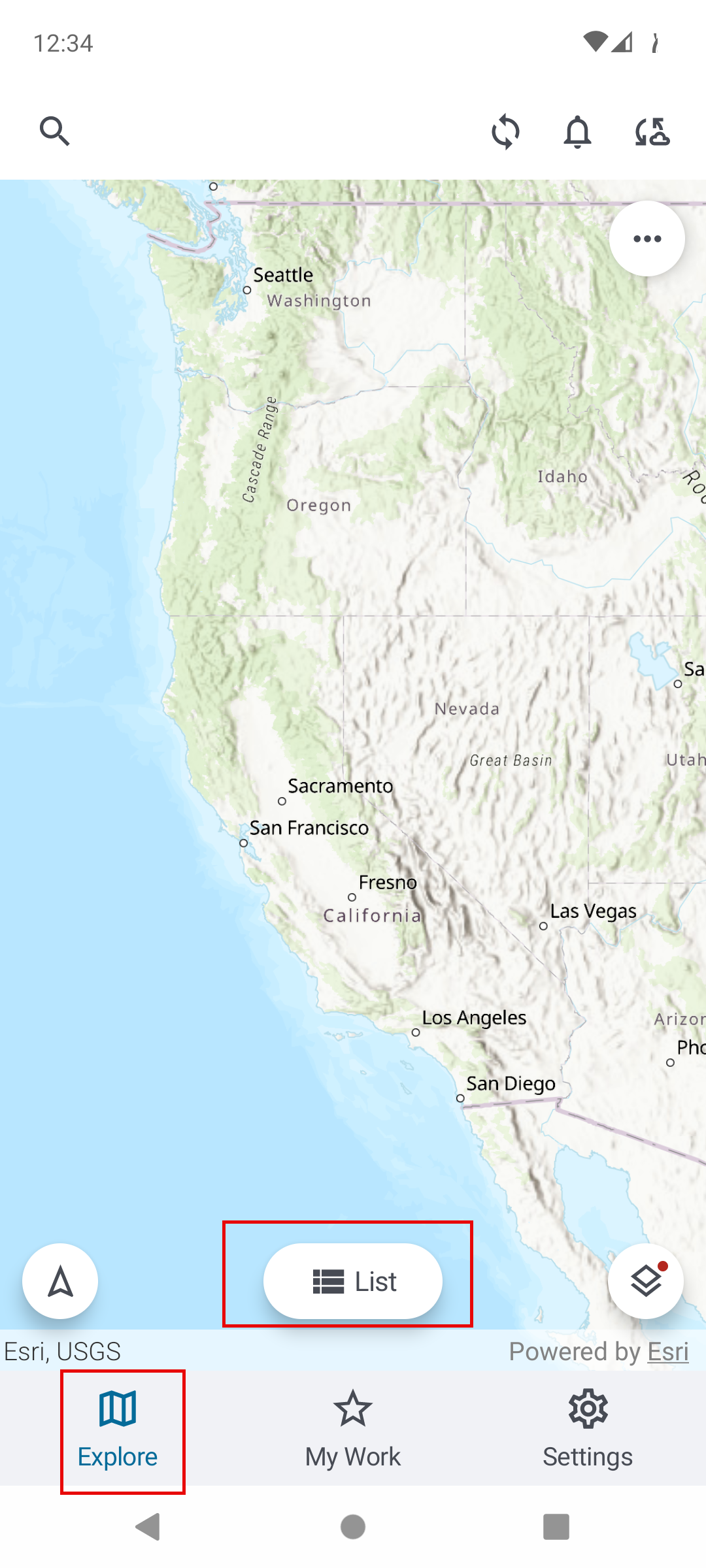
Open the app and tap Explore in the bottom navigation bar.
Tap List to open the Treatments list. Scroll or use the search bar to find the treatment you are working on. Treatments shown are non-grant, Active treatments only.
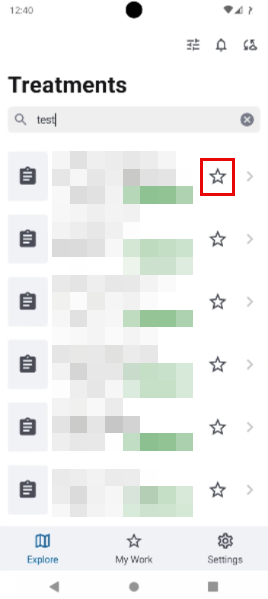
To save a treatment for quicker access, tap the star icon on the treatment row to add it to My Work.
Step 3: Open the Treatment
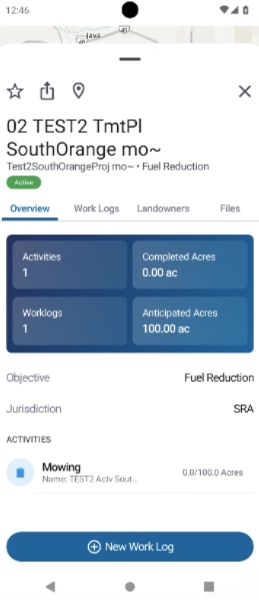
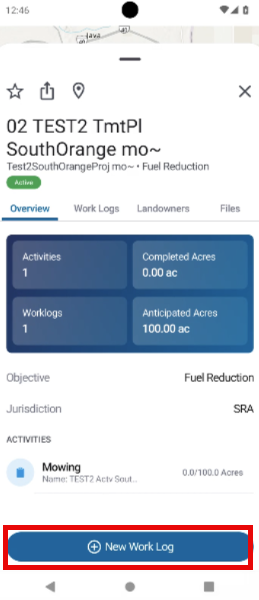
Tap the treatment to open the treatment detail sheet. Review the Overview tab to confirm the correct activity is listed under Activities.
Step 4: Start a New Work Log
Tap New Work Log at the bottom of the treatment detail sheet.
Step 5: Select the Activity
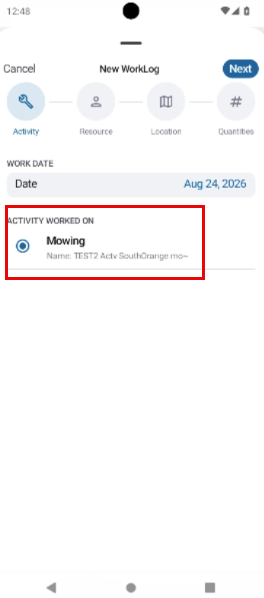
On the Activity step, confirm the Work Date is correct, then select the activity worked on. If the activity has additional options, select the appropriate values from the nested radio buttons. Tap Next.
Step 6: Add Resources
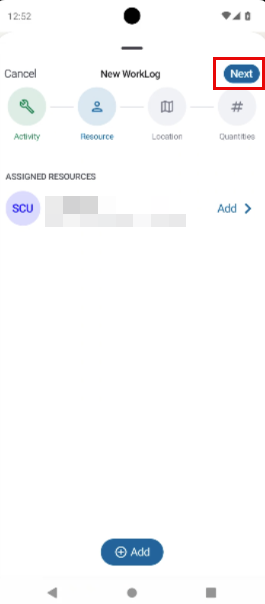
Tap Add to assign the crew and equipment used.
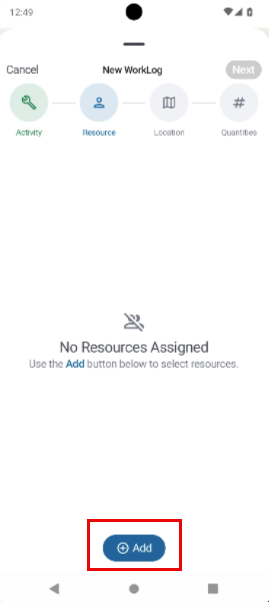
Add all personnel and equipment counts for this work session.
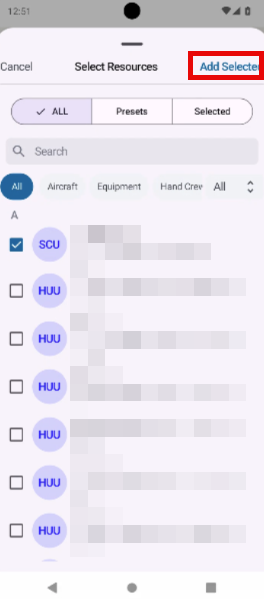
Tap Add Selected. Then, click Next.
Step 7: Record the Location
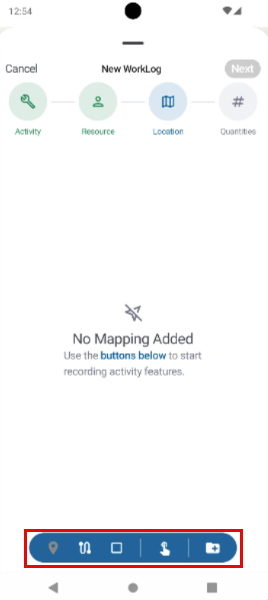
Use the geometry toolbar to record where the work was performed. For most field use, tap the Point or Streaming icon to capture your GPS location.
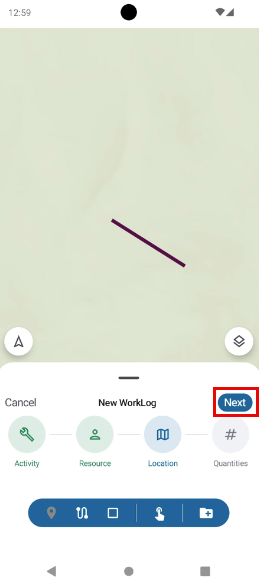
Once a geometry has been recorded, tap Next.
Step 8: Enter Hours
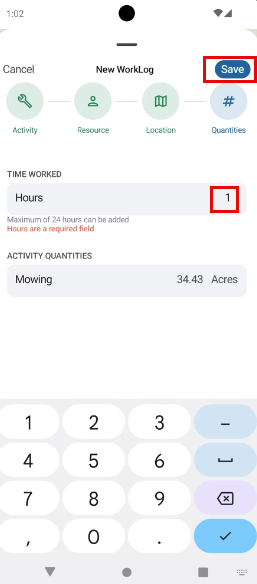
Enter the total hours worked (maximum 24). Confirm the activity quantities calculated from your geometry. Tap Save.
Step 9: Sync the Record
After saving, the work log is stored locally on the device. To send it to the server, tap the Sync icon (upload arrow) in the top toolbar to open the My Edits panel, then tap Send All Records. An internet connection is required to sync.
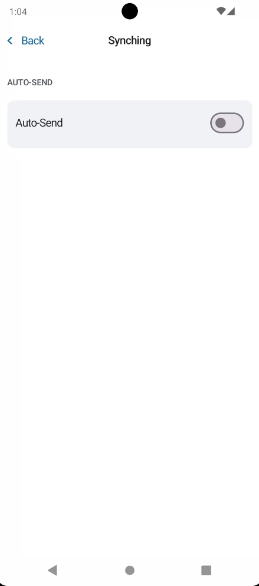
If Auto-Send is enabled in Settings > Syncing, the record will sync automatically without this step.