
Activity Tracker Web
Accessing the Application
Activity Tracker can be accessed through the Wildfire Analyst (WFA) Portal.
Accessing the Application - CalMAPPER
CAL FIRE personnel will have access to two distinct environments of CalMAPPER Desktop and Mobile: Training and Production.
Training
The Training environment is intended for training sessions, testing new features or updates and general learning without impacting live data. Access the Training environment at https://calfiretra.wildfireanalyst.com/ .
Production
The Production environment is the live system used for official operational data. Access the Production environment at https://calfire.wildfireanalyst.com/ .
Logging in with Username and Password
Using the URL specified above, log in with the username/email and password associated with your account. If you do not have an account, please contact your organization lead.
Once you have logged into the WFA Portal, you will be taken to the Applications screen. Click on your Activity Tracker application to open the application.
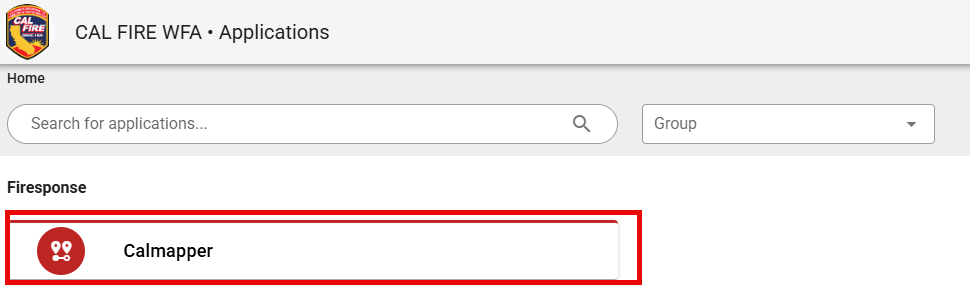
Activity Tracker
Resetting Your Password
To reset your password:
-
Click Forgot Password and enter the email associated with your account.
-
You will receive an email with a link to create a new password. Click Set New Password and follow the instructions provided.
Editing Your Profile
To access or edit your user profile follow the steps outlined below:
-
Log into the WFA Portal or Activity Tracker. The user profile can be reached from the main WFA Portal screen or from within the Activity Tracker application.
-
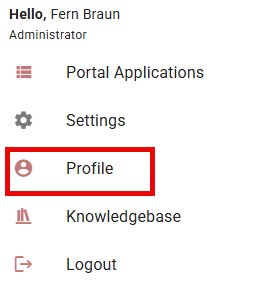
Click on the settings icon in the top right corner of the screen in Activity Tracker and select the Profile option:
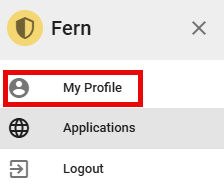
Or click the shield icon in the top right corner in the WFA Portal and select the My Profile option:
-
Click Edit Profile if you would like to make edits or Change Password to update your password.

The color and icon for your user profile icon may vary depending on your assigned role
-
Make any necessary changes such as name or contact information.
-
Click Save to apply the changes.
Activity Tracker Mobile
Installation
The Activity Tracker mobile app is available for iOS and Android. Because the app is not distributed through public app stores, installation requires a separate step depending on your platform.
iOS
The iOS app is distributed through TestFlight, Apple's beta distribution platform. You must install TestFlight before you can install Activity Tracker.
-
Download TestFlight from the Apple App Store.
-
Open the Activity Tracker TestFlight invitation link provided by your administrator.
-
Tap Accept on the TestFlight invitation.
-
Tap Install to download and install the app.
TestFlight apps do not update automatically. When a new version is available, you will receive a notification in TestFlight and must install the update manually.
Android
The Android app is distributed through Google Play's internal testing track. You must be added to the testing track by your administrator before the install link will work.
-
Open the internal test track link provided by your administrator.
-
Tap Download on Google Play.
-
Install the app as you would any Play Store app.
Required Permissions
After installation, the app will request permission to access your device's location. Location access is required for GPS geometry collection when recording work log locations in the field. The app does not store or transmit your location data outside of the geometry you explicitly record and submit.
On iOS, go to Settings > Apps > Activity Tracker > Location > While Using App, and enable Precise Location.
On Android, grant location permission when prompted during first launch.
Access and Login
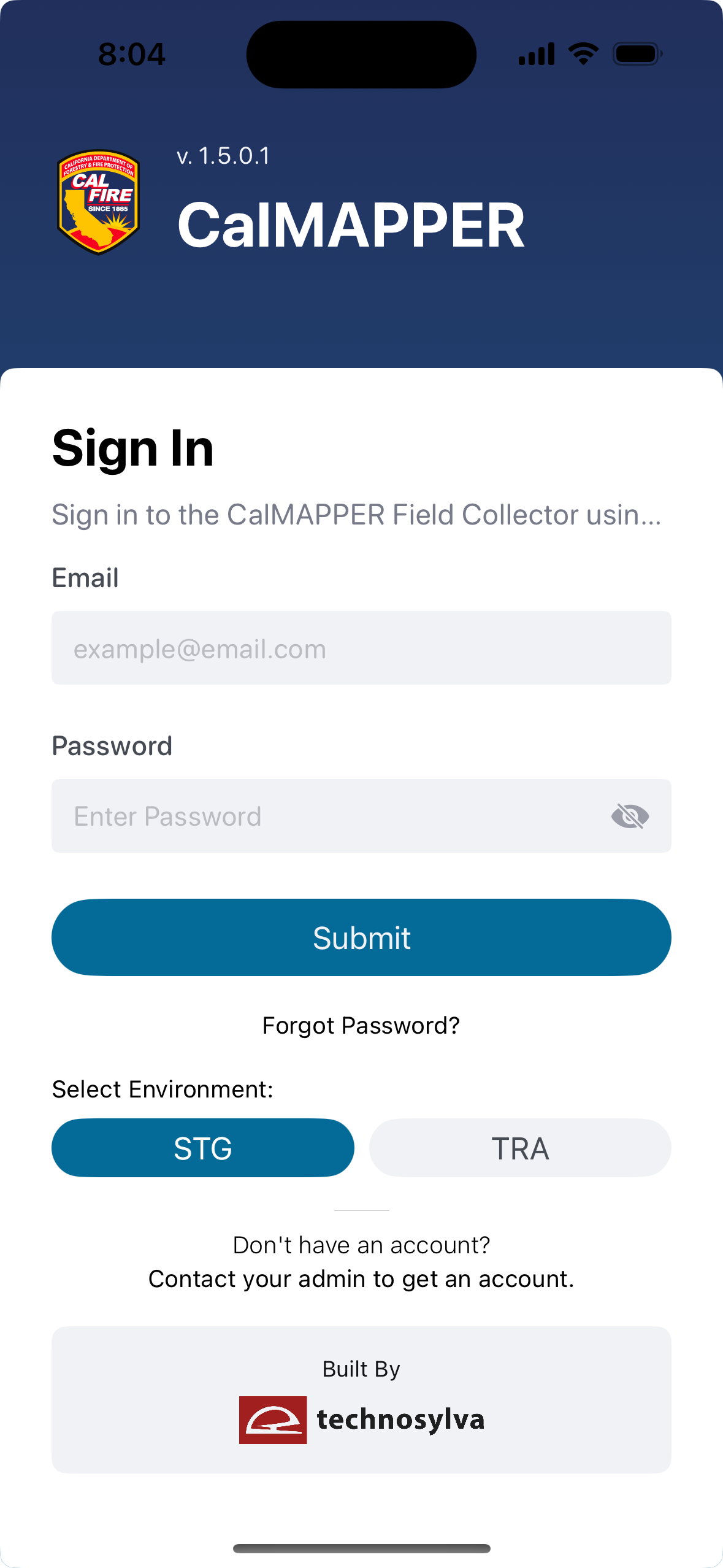
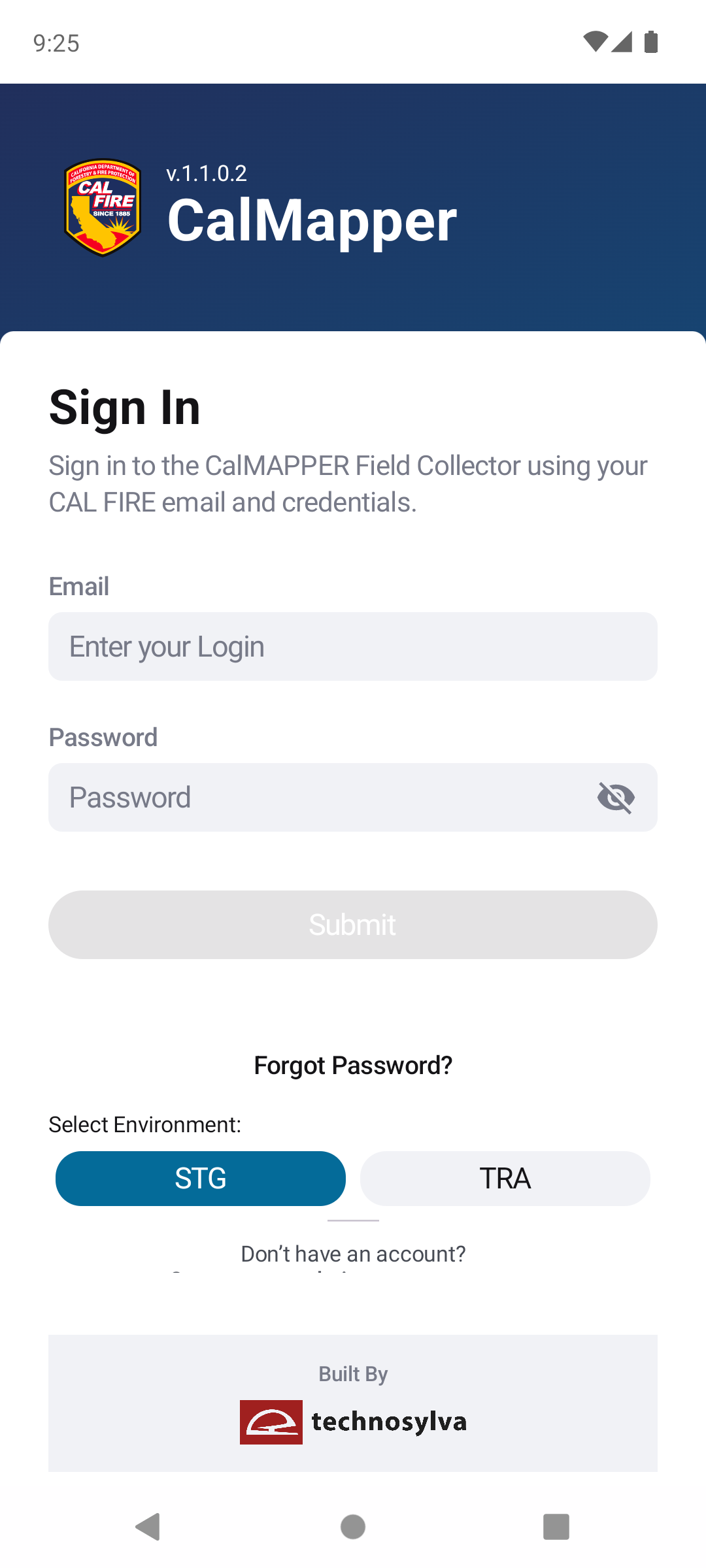
Activity Tracker Mobile uses the same credentials as Activity Tracker Web. There is no separate account for the mobile app. To log in:
-
Open the Activity Tracker app.
-
Enter your username and password.
-
Select the desired Environment (e.g. Training or Staging).
-
Tap Submit.
On subsequent logins, you can enable biometric authentication (Touch ID or Face ID on iOS; fingerprint or face unlock on Android) to log in without entering your password each time.
|
|
|---|