
Getting an Account
Access to Wildfire Operations requires an account on http://my.technosylva.com or http://my.technosylva.ca for your organization/agency.
-
Current customers: please contact your organization’s lead to get an account.
-
Prospective customers: please reach out.
Accessing the Application
Depending on your organization, you will log in with either a username/email and password or with Single Sign-On (SSO) authentication. If you do not know how to log in, please contact your organization lead.
Logging in with Username and Password
To log into the WFA Portal, use the WFA Portal username/email and password associated with your account.
Click Continue to access the Applications screen.
Resetting Your Password
Password reset is only available to customers logging in with a username/email and password.
To reset your password:
-
Enter the email associated with your account and click Forgot Password?
-
You will receive an email with a link to create a new password. Click Set New Password and follow the instructions provided.
Logging in with Single Sign-On (SSO)
To log in, use the email associated with your account.
Click Continue to access the Applications screen.
Emails for organizations with SSO enabled will be automatically recognized.
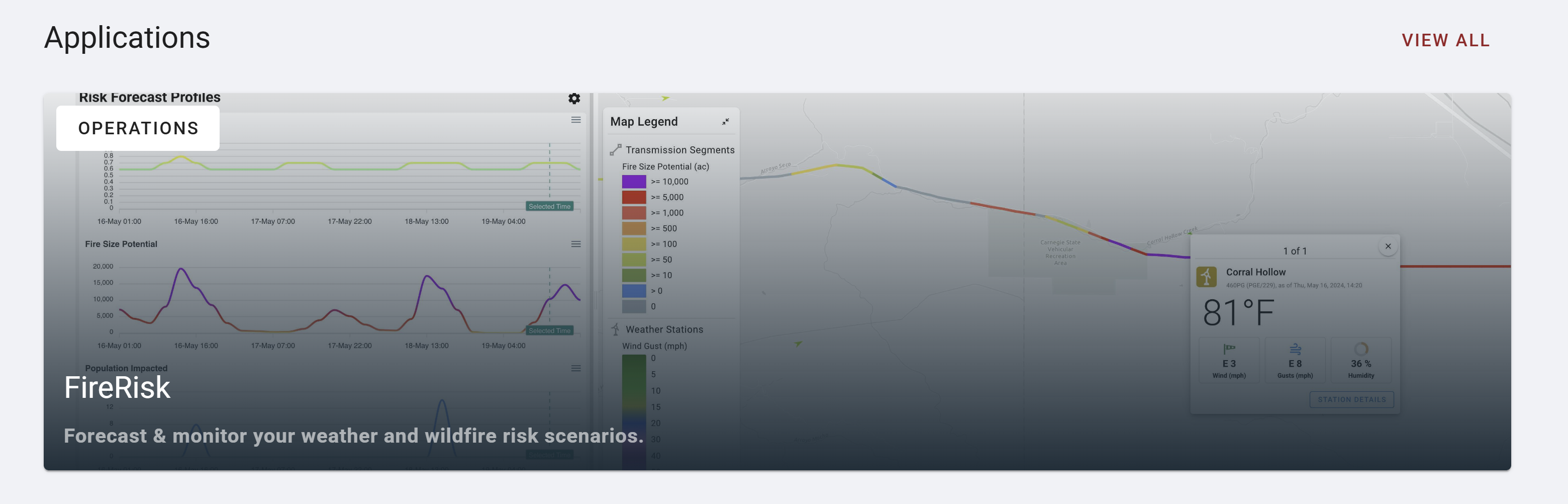
Once you have logged into the WFA Portal, you’ll be taken to the Applications screen.
Click on FireRisk to open the application.
Editing Your Profile
To access your user profile follow the steps outlined below:
-
Log into the WFA Portal.
-
Click on the user profile icon in the top right corner of the screen
-
Click My Account in the pop up card.
-
Make any necessary changes.
-
Click Save to apply the changes.
Depending on the changes made, you may be required to login again.