Definitions
Roles
-
There are the baseline permissions for a user account
-
i.e. An Administrator role will have permission to everything, where as a Public User will be more limited based on the permissions that are set for that role
-
Groups
-
These are the “buckets” that set access to folders within File Explorer.
-
i.e. The Public Group will have access to the Public folder
-
Users
-
For user creation, editing, and permissions follow this link:
To change permissions for a folder:
Individual Users:
-
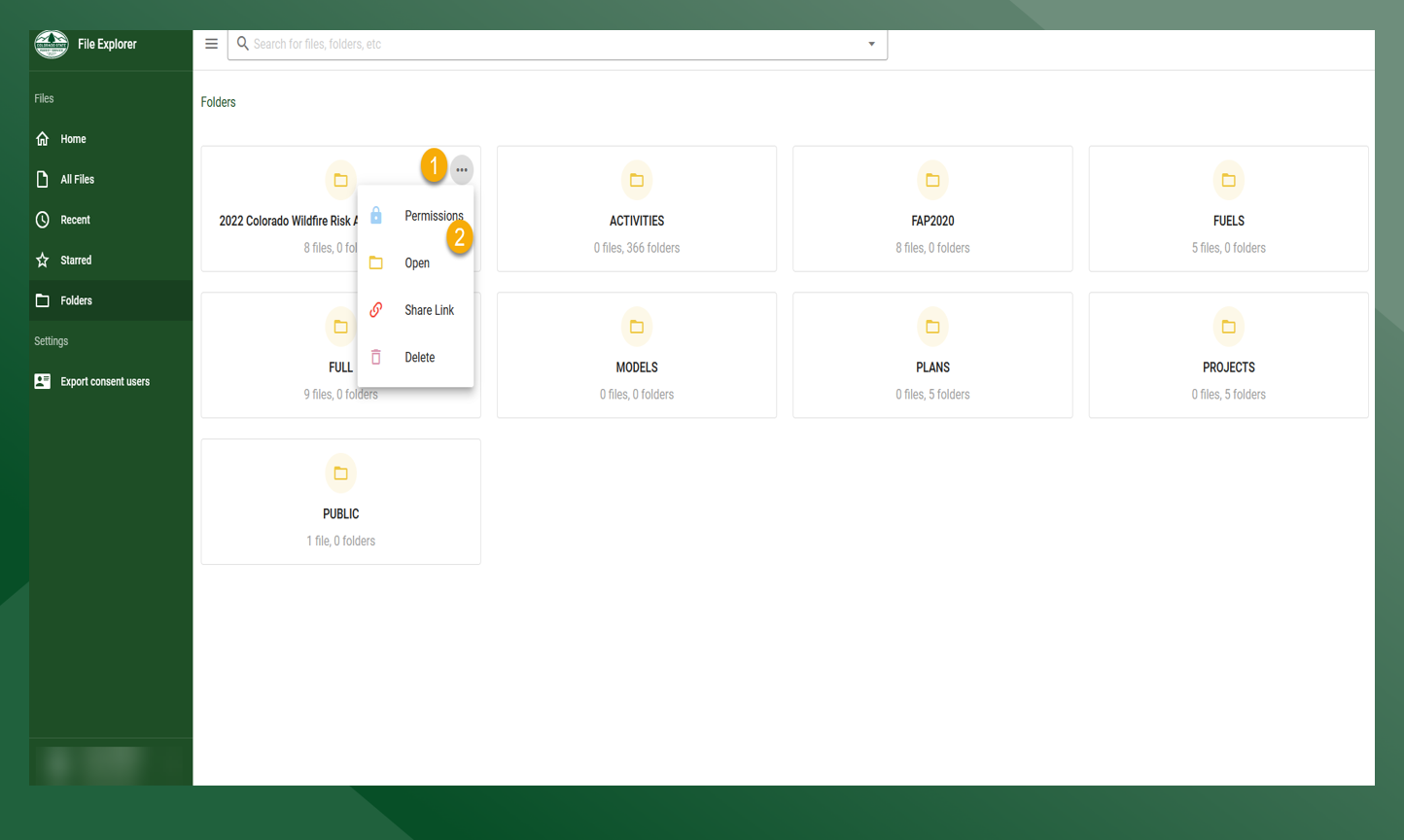
Click
on the folder that you would like to edit permissions for
-
Click Permissions
-
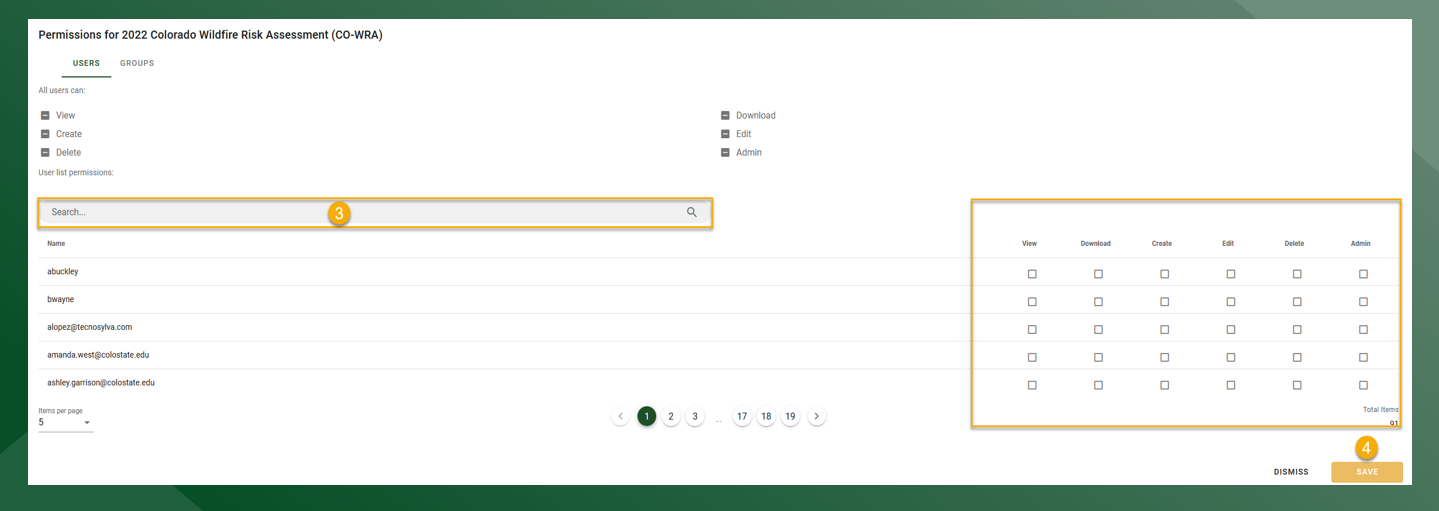
To change individual user(s) access and permissions, search for and select the user(s) from the list
-
Choose the permissions for the user(s) be checking the boxes on the right hand side
-
-
Press save to apply changes
Role Groups:
-
Click
-
Click Permissions
-
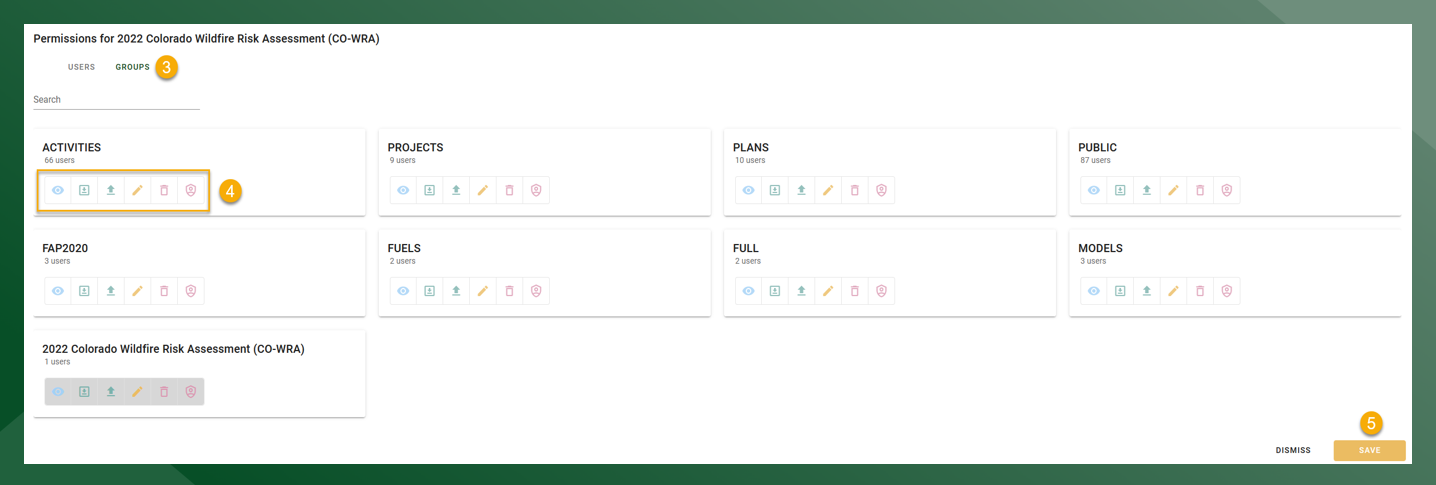
Click on Groups
-
Choose the desired permission(s) for the Role Group you would like to edit
-
For example: If an Administrator wanted to give the “Fuels” Role Group access to the CO-WRA folder, they would click
on the “Fuels” card
-
Each icon on the Role Group Card corresponds to a specific permission:
-
-
= Download Contents
-
= Upload to Folder
-
= Edit Folder and Contents
-
= Delete Folder Contents
-
= Full Permissions to Folder
-
-