This section provides step-by-step guidance for reporting CWPP projects in the Planner.
Note: If the CWPP efforts were also part of a Grant Funded Project, this CWPP guidance should be followed, NOT the Grant Funded Project guidance. Appropriate grant funding sources should be added to Projects and Activities where relevant.
Creating a CWPP project in Planner
All CWPPs should be entered as a ‘Project’ under the appropriate DPA Plan Year (work plan) by staff responsible for signing CWPP.
Click ‘+Create’, ‘New Project’ in the upper right corner.
-
Details
-
Project Name: Community Name CWPP Year (ex. Blackhawk Ranch CWPP 2024).
-
To avoid duplicate entries, search the database before creating a new CWPP project.
-
-
Deed Name: Leave blank.
-
Status: Related to the time of entry into GeoTracks. Most CWPP (plans) projects should be entered as “In-Progress”.
-
Select ‘Planned’ if development of a new CWPP is anticipated in the DPA fiscal year (e.g., Saguache County has announced plans to develop a CWPP in the upcoming year but work has not yet been initiated).
-
Select ‘In-Progress’ for all CWPPs that are currently under development.
-
Note: In addition to creating the CWPP (plan) project in Planner, a corresponding activity for CWPP development should also be created. Additional activity entries are created for each CWPP activity completed (e.g., CWPP review, meetings, technical guidance, etc.).
-
-
Select ‘Completed’ for plans that were signed and approved. Enter the Start Date when CWPP development began. Enter the End Date when the CWPP was completed and signed.
-
Do NOT use ‘Closed’ unless a community is no longer aware of/using the CWPP.
-
-
DPA Plan: Select current DPA plan year for the respective area the CWPP is located within (e.g., Northeast Area FY 2024).
-
For new sites, select the appropriate plan.
-
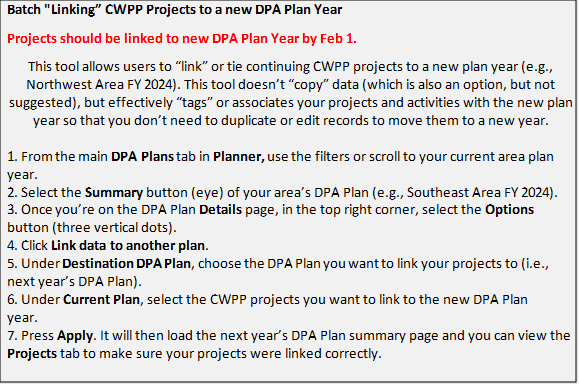
For existing plans, a “batch linkage” will need to occur annually to update the projects with the appropriate, current plan.
-
-
Staff Responsible: Enter the name of the individual who is the primary point of contact for CWPP development.
-
Unit of Measure: Select ‘Each’.
-
Dates: Enter CWPP dates.
-
Start: Date the CWPP plan development started.
-
End: Date the CWPP was signed.
-
-
Comments: Add any other relevant comments or information.
-
Click ‘Next’.
-
-
Location
-
Use the search function or drop a manual point within the boundaries of the CWPP.
-
Note: CWPP plan acres (polygon boundary) will be captured when entering activities in GeoTracks Web or Mobile Applications.
-
-
Disregard the Priority Analysis section – a shapefile doesn’t need to be uploaded here.
-
Click ‘Next’.
-
Landowner
-
Add CWPP community, city, fire protection district or county information by first searching the landowner database (click ‘ADD LANDOWNER’) or creating a new landowner record (click ‘CREATE LANDOWNER’). Update landowner information as needed.
-
To avoid duplicate entries, be sure to search the landowner database prior to creating a new landowner and avoid using abbreviations.
-
Example: “Durango Fire Protection District” should not be entered as “Durango FPD”.
-
-
Note: a new landowner record can be created beforehand using the ‘Landowner’ tab in Planner.
-
-
To create a new landowner record, the following information is required:
-
First Name: Enter the name of the community, city, fire protection district, or county in the ‘First name’ box. The ‘Last Name’ box should be left blank for CWPP plans.
-
Manager: Select ‘Private’ for a community or HOA, ‘City Municipal’ for a city, ‘Other’ for a fire protection district, and ‘County’ for county-level CWPPs.
-
The ‘Ownership’ box will auto-populate based on the selected ‘Manager’.
-
-
-
Address: Enter the address that is most relevant to the CWPP.
-
No individual landowner information should be entered for CWPPs.
-
-
Click ‘Save’.
-
Locate the newly created landowner record in the list or use the search function to enter the ‘First name’ of the recently created record.
-
Select the appropriate landowner record by checking the box to the left of the entry.
-
Click ‘Save’ at the bottom of the page to complete the process.
-
-
Click ‘Next’.
-
Funding
-
Funding Source: All CWPP Projects should have ‘State Fire Assistance’ and ‘HFVC’ as funding sources.
-
Click ‘ADD SOURCE’ and select ‘State Fire Assistance’ from the dropdown menu.
-
Click ‘ADD SOURCE’ and select ‘HFVC’ (Healthy Forests & Vibrant Communities) from the dropdown menu.
-
-
Account Number: Leave blank unless known.
-
Subaccount Number: Leave blank unless known.
-
If applicable, continue selecting ‘ADD SOURCE’ to include additional funding sources.
-
Add appropriate grant funding such as “Community Wildfire Defense Grants” or “Incentives for Local Governments” if a CWPP has additional grant funding.
-
-
Click ‘Save’. This will direct you to the project overview page.
Note: All CWPP (plan) projects should have a polygon associated with the CWPP (plan) activity created. Additional activities associated with CWPP development do not need polygons (points are preferred). Activities can be entered in Planner or GeoTracks Web/Mobile. CWPP plan acres (polygon boundary) will be captured when creating or editing activities in GeoTracks Web or Mobile Applications.
Linking CWPP projects (and activities) to a new DPA plan
This process is only needed by Area Managers: