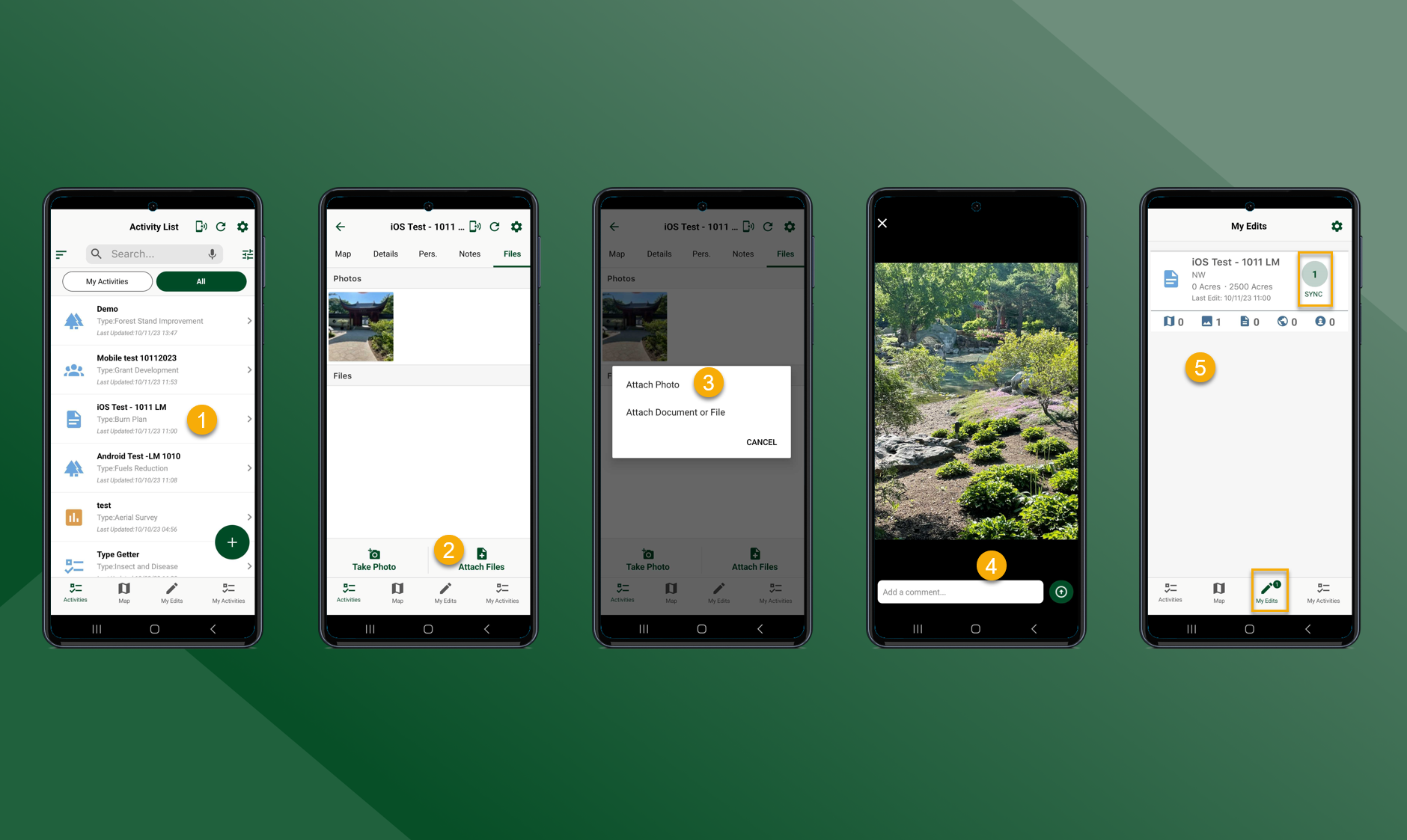
Taking a Photo:
-
Select the Activity that you would like to attach a photo or file to
-
Select Take Photo
-
Tap
to take photo
-
Add comment or caption and press :Attach_Photo:
-
Select My Edits and select Sync to sync the attached photos/files/documents to the database and make them visible to other users (More Detail on Syncing Data Here)
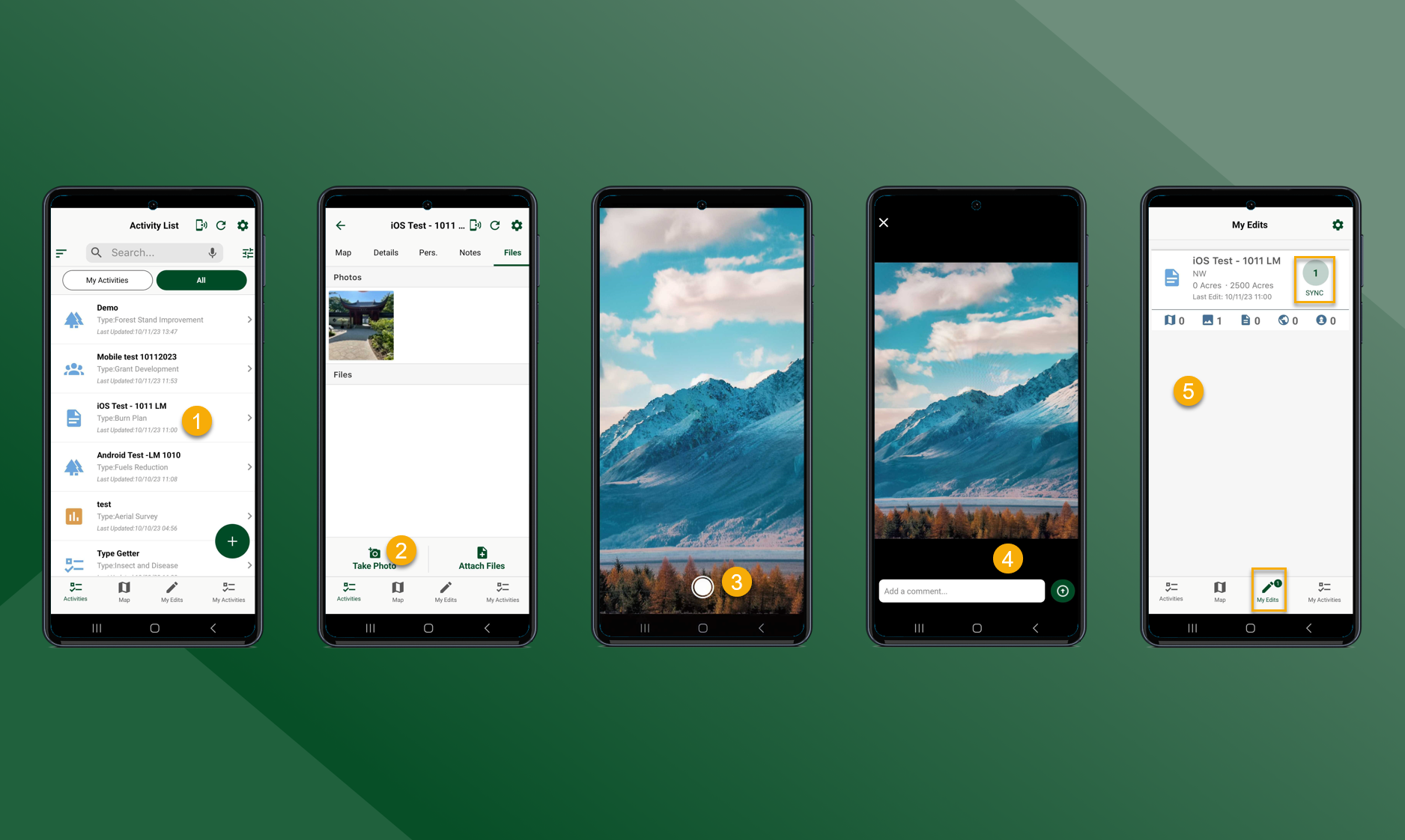
Attaching Document or File from Device:
-
Select the Activity that you would like to attach a photo or file to
-
Select Attach Files to attach a photo or file from your device to the activity
-
Select Attach Document or File to attach a document or file from the device
-
The device will default to On This Device, but if you select Browse the device file explorer will appear
-
Choose the folder that the file is in and choose the document or file to be uploaded
-
-
Select My Edits and select Sync to sync the attached photos/files/documents to the database and make them visible to other users (More Detail on Syncing Data Here)
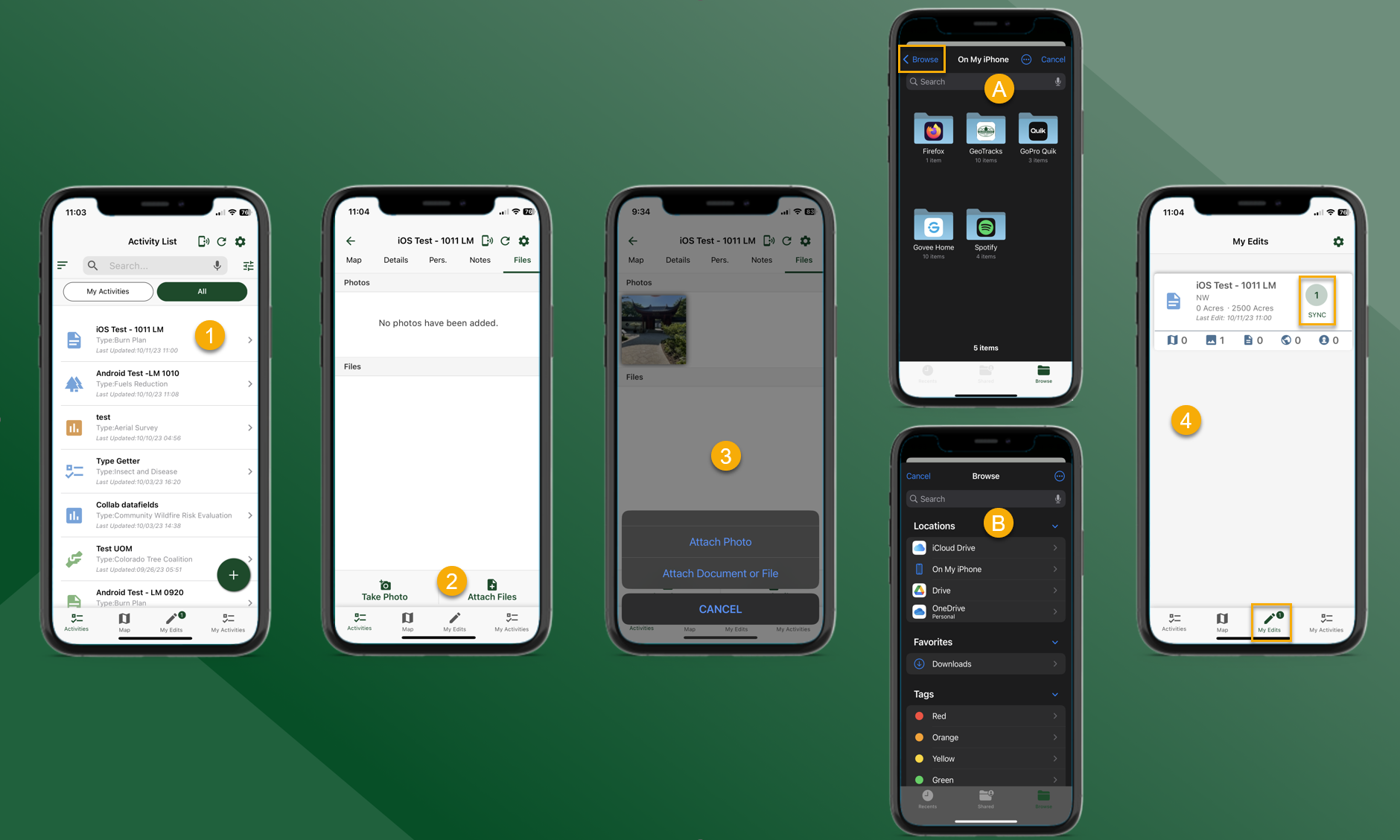
Attaching Photos from Device:
-
Select the Activity that you would like to attach a photo or file to
-
Select Attach Files
-
Select Attach Photo to attach a photo from your device to the activity
-
Choose photo, add a comment or a caption to the photo and press :Attach_Photo:
-
Select My Edits and select Sync to sync the attached photos/files/documents to the database and make them visible to other users (More Detail on Syncing Data Here)